MP4 to Text
Extract the words from your video’s audio track. Upload MP4 or turn an existing subtitle file into editable text.
MP4 video recordings · Up to 500 MB
What is MP4 to text?
MP4 to text conversion transcribes the spoken audio inside a video file. Upload an MP4 here to extract its first audio track, generate timestamped text and export TXT, DOCX, SRT, VTT or JSON. The converter does not read words shown on slides or burned into video frames. If you already have an SRT or VTT caption file, use the local importer below to create a transcript without sending the video or spending transcription minutes.
Already have subtitles? Turn them into a transcript.
Import SRT or VTT locally to review and export the text. No upload, account or transcription minutes required. This reads caption text; it cannot recover words missing from the subtitle file.
How to convert MP4 to text
- STEP 1
Check the video’s sound
Play the MP4 in your own video player. Confirm that the dialogue is audible, the intended language is present and the file is the edit you want to caption. A silent video needs a different workflow; text on screen is not an audio track.
- STEP 2
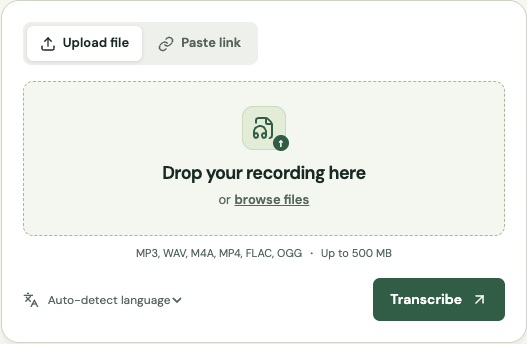
Upload the MP4
Choose the MP4 file or a direct downloadable HTTPS MP4 link. The server validates the media container and decodes the first audio track. Paid files must fit both the two-hour duration limit and the 500 MB upload limit.
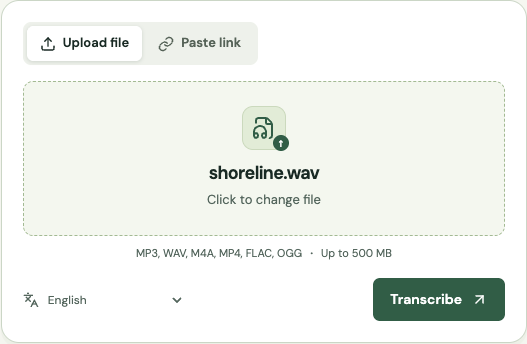
- STEP 3
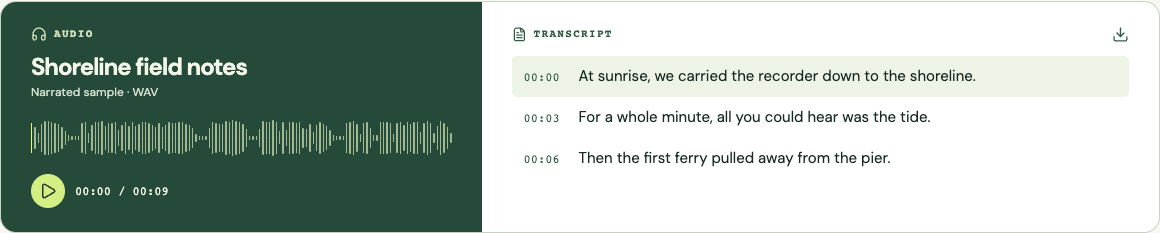
Review words and timing
Correct the transcript in the cue editor, paying attention to names, numbers and phrases near cuts. Compare the displayed timestamps with the source player. Your edits remain in this browser tab until you download them.
- STEP 4
Export for editing or reading
Choose SRT or VTT to bring timed text into a compatible editor or player. Use TXT or DOCX for a reading copy. If you started with existing captions, inspect the imported cues before exporting; their accuracy comes from that source file.
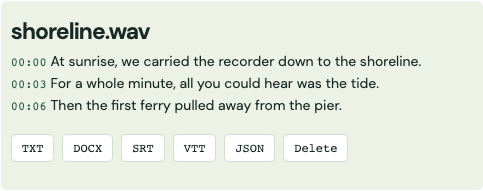
Screenshots show the shared transcription workflow with a sample recording.
The hard part: a container is not an audio guarantee
MP4 is a container that can hold video, audio and other tracks. A filename ending in .mp4 does not guarantee that the recording contains intelligible speech or a decodable audio stream. This converter checks the container and attempts to decode the first audio track before reserving transcription minutes. A damaged download, an unusual codec or a silent export can fail at that stage. Try playing the source locally before uploading it again.
Some videos contain more than one audio track: a main language, commentary, an alternate language or an accessibility description. The current workflow selects the first audio track. It does not offer a track picker. If that is not the track you want, export the desired audio from your editor and use the general audio transcription tool. Keep the original MP4 so you can compare the resulting text against the correct version later.
Visual context is outside speech transcription. A presenter can say “use this value” while pointing to a spreadsheet, but the spoken words alone do not establish the number on screen. Check slides and demonstrations yourself when preparing a written explanation. Similarly, text burned into a video frame is not the same as a subtitle file. The caption importer reads SRT or VTT text; it does not perform optical character recognition on images.
Manage duration and file size separately
A short high-resolution video can exceed the upload limit even when its audio is brief. Conversely, a compressed lecture can be small enough to upload but longer than your remaining minutes. Check both constraints before starting. Paid uploads allow up to two hours and 500 MB per file, and each recording must fit the account’s available balance. Guest recordings must fit the cumulative trial allowance and shared trial availability.
When picture quality is the reason a file is large, export an audio-only copy in a supported format and upload it through the main tool. There is no transcription benefit in sending extra image detail when only speech is analyzed. Avoid repeatedly recompressing the audio while making that copy. If you trim a longer video into sections, keep the split times in a log so you can restore the correct timeline when assembling the transcripts or captions.
Choose between fresh transcription and existing captions
If an editor or meeting platform already produced a usable SRT or VTT file, importing it may be the simplest route to a reading transcript. The importer works locally in your browser, preserves cue times and lets you correct text before exporting. It accepts files up to 2 MB and checks that each cue has a valid time range in increasing start order. It does not contact the speech provider or consume your recording allowance.
Existing captions can be incomplete. They may omit a speaker, contain a translation instead of the original language or cover only an edited excerpt. Converting that file to TXT cannot recover the missing words. Listen to a few representative passages, including the opening and closing, before deciding that captions are a substitute for a new transcription. If you need the spoken original rather than an edited subtitle translation, start from the audio.
Keep subtitle timing aligned with the video edit
Generated cue times refer to the uploaded audio timeline. Cutting ten seconds from the beginning afterward makes those cues ten seconds late unless you adjust them in your editor. Changing playback speed produces a growing mismatch that a single offset cannot fix. The safest workflow is to finish the major timing edits first, then generate captions from that version. If another editor is making changes, agree which export is the timing reference.
Preview the resulting subtitle file in the player where viewers will see it. Check long cues, speaker labels, punctuation and the timing of rapid exchanges. Some editors interpret formatting or line breaks differently, so a valid file still needs a visual review. SRT is widely used in editing workflows, while VTT is useful for web playback and other platforms that request it. Neither export changes the video itself; you attach or import the file at the destination.
Troubleshoot failed or unhelpful MP4 results
If the converter rejects the file before transcription, check whether the download completed and whether the file plays with sound locally. Renaming another format to .mp4 does not convert it. Export a compatible MP4 or use an audio-only file with the general uploader. A video with no audio cannot produce speech text, and a commentary track in the wrong language needs to be replaced with the intended source rather than repeatedly resubmitted.
If transcription completes but the result is poor, compare the problem passage with the actual audio. Background music, distant microphones and overlapping dialogue can obscure speech. Choose a cleaner source track when available, or correct the uncertain passage manually. Do not assume that higher video resolution will improve word recognition. Keep a local copy of the edited transcript and subtitles before leaving the page, because browser edits are not saved as a permanent project.
Hand the result to the next person
Name the exported transcript after the video version, not merely the event. A filename such as product-demo-v3 helps the editor distinguish it from an earlier cut. Include any known start offset and state whether the words were automatically generated, reviewed or translated elsewhere. For a reading copy, retain timestamps beside sections that refer to a demonstration so the reader can return to the visual context when the text alone is insufficient.
For a team workflow, send the caption file and its matching video together or identify the exact shared video asset. Ask the recipient to check the first and last cues before doing detailed styling. That quick alignment check catches the common mistake of attaching good captions to the wrong edit. Download your outputs when ready and use your own storage for version history; the transcription service’s retention window is not a video production archive.
Compare transcription approaches
| Approach | Useful for | What to plan for |
|---|---|---|
| Human transcription | Difficult dialogue requiring careful review of audiovisual context. | Specify whether you need subtitles, a reading transcript or descriptions of visuals. |
| General automatic tools | Speech recognition from a supported audio or video recording. | Check which audio track is selected and whether timed exports are included. |
| Free subtitle/local tools | Converting existing captions or processing files on your computer. | Caption conversion cannot recover missing speech; local recognition needs setup. |
Continue with your recording
Use the online audio transcription tool for other supported formats, or compare paid minutes and features before processing a longer file.
Maintained by Get Audio Transcript · Updated
Common questions
Does MP4 to text read words on the screen?
No. It transcribes the first audio track. It does not extract slide text or burned-in captions from video frames.
Can I convert a silent video?
Speech transcription requires a decodable audio track with speech. If you already have a separate SRT or VTT file, import that locally instead.
Does importing subtitles use my free minutes?
No. SRT/VTT import and editing happen in your browser without a transcription request. The importer accepts files up to 2 MB.
What if the wrong language is transcribed?
Check the source’s first audio track. Videos can contain alternate tracks; export the intended one separately and use the main uploader. Select the correct spoken language before transcription.
Can I upload a video larger than 500 MB?
Not directly. Export a supported audio-only copy or split the recording locally. Keep the split offsets if you need to rebuild the original subtitle timeline.